Waitlists
The waitlist prioritizes the enrollment of students in a class section after the section
has reached maximum capacity. Being on a waitlist does not guarantee you a seat in
the class. It is always best to enroll in a class with open seats when possible.
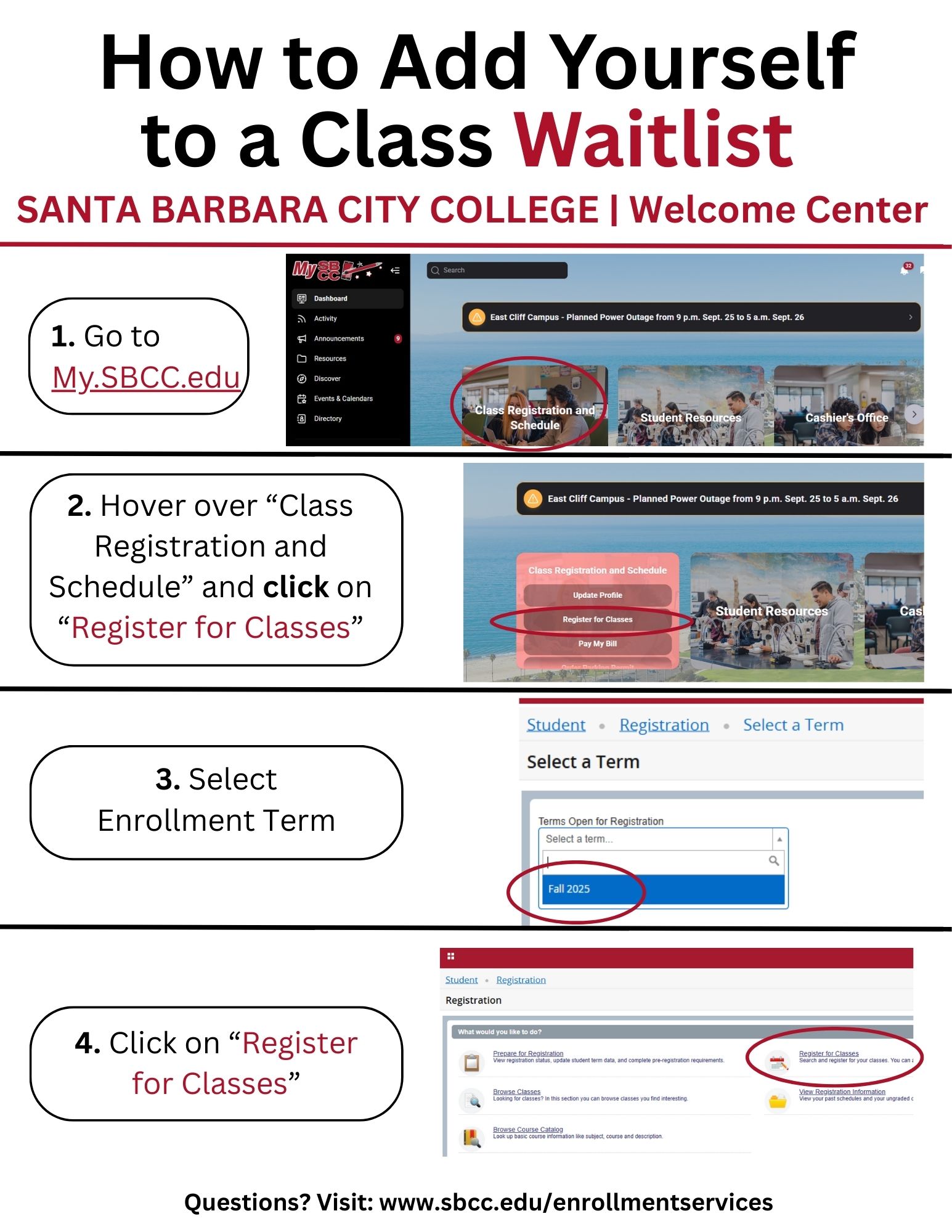
Log in to the campus portal and go to Registration. Hover over “Class Registration and Schedule” and click on
“Register for Classes.” Select your enrollment term. Click on "Register for Classes."
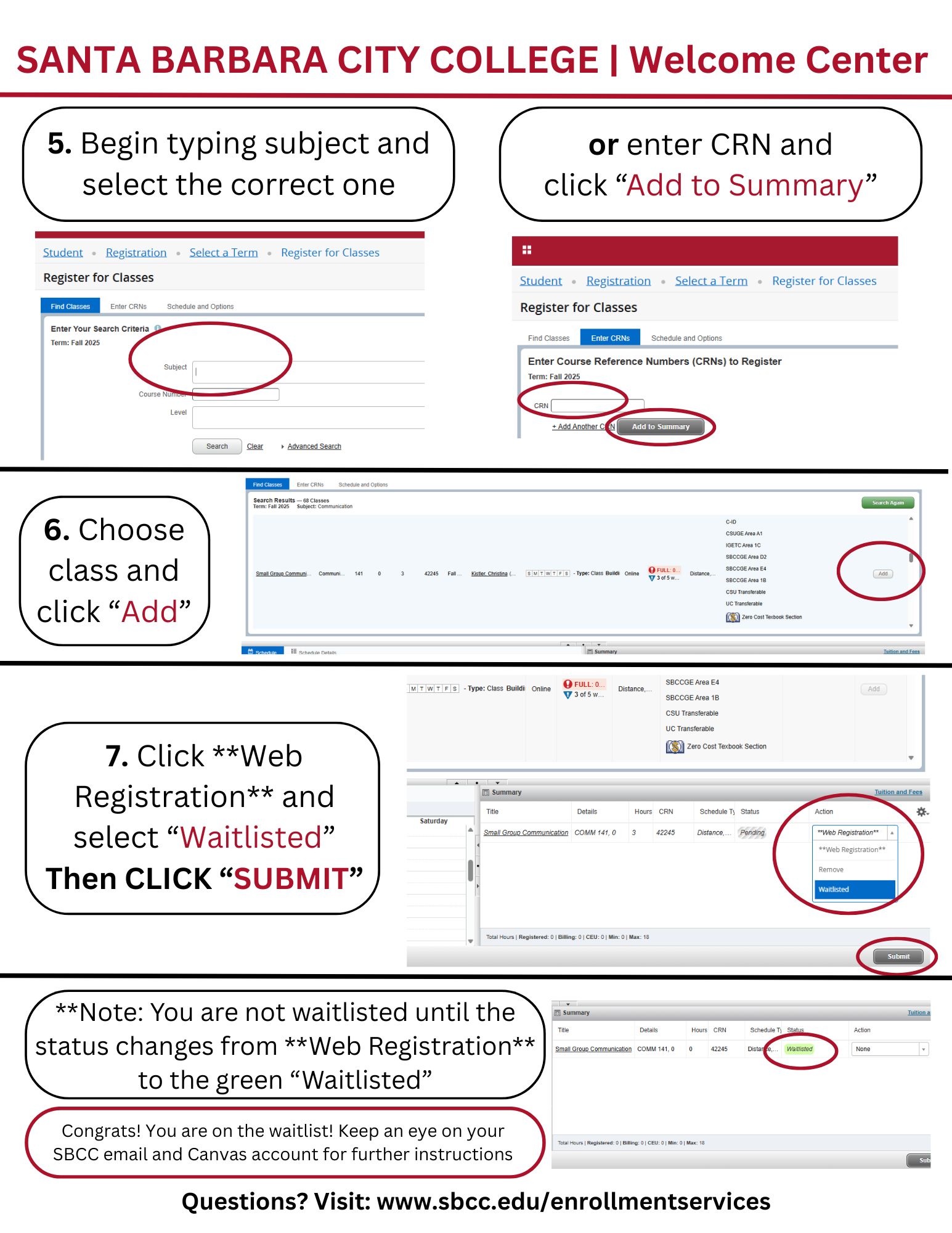
Type the class subject into the "Subject" box and select the correct subject. Then
find the correct class and click "Add, or click "Enter CRN" to enter the class CRN and click "Add to Summary." Then click **Web
Registration** and select “Waitlisted." Then CLICK SUBMIT.
YES! Students officially waitlisted for a class will automatically be registered in that class when a seat becomes available. You will be registered in the specific section for which you are waitlisted. Once you are registered in the class, you will be notified via your SBCC email confirming your registration and payment requirements and deadlines. Please note, you will NOT be automatically registered in the course if you do not meet the stated prerequisite for the course or if you have exceeded the maximum allowable units for the term.
CHECK YOUR CAMPUS EMAIL REGULARLY and your schedule of classes! You will be notified via your campus email that you have cleared the waitlist and are registered in the class. You will also be sent relevant payment information and deadlines.
Log in to the campus portal and go to Registration. Hover over “Class Registration and Schedule” and click on “Register for Classes.” Select your enrollment term. Click on "Register for Classes." View your classes on the bottom right side of the screen. Click on “Waitlisted" and select "Drop/Delete." Then CLICK SUBMIT.
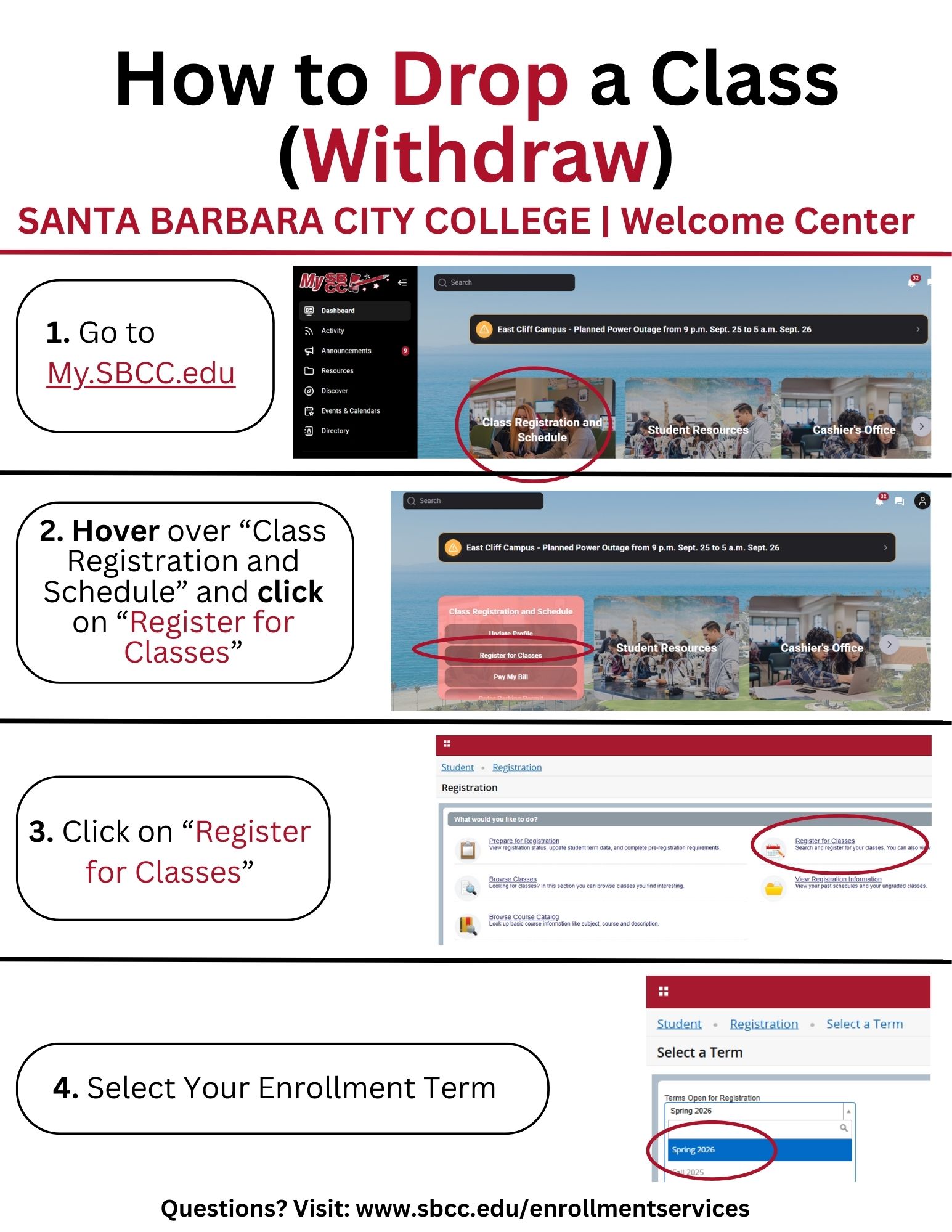
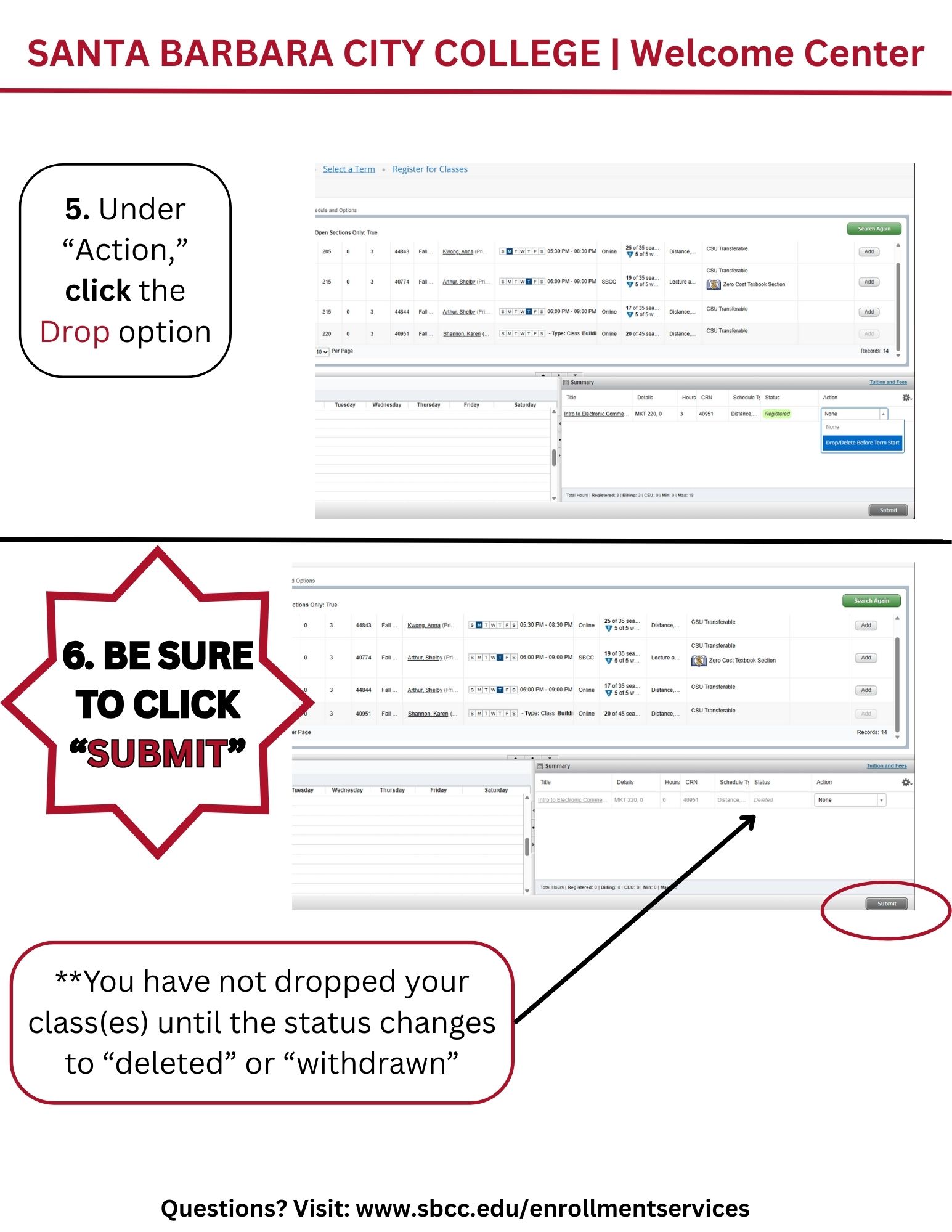
Log in to the campus portal and go to Registration. Hover over “Class Registration and Schedule” and click on “Register for Classes.” Select your enrollment term. Click on "Register for Classes." View your classes on the bottom right side of the screen. Click on "Schedule Details" on the bottom left side of the screen to view your waitlist position.
If you still wish to add the class, you must go to the first class meeting. The waitlist will be used to prioritize the distribution of add authorization codes on the first day of class only.
Online class? Send an email to the instructor on the first day of class indicating that you are on the waitlist and still wish to add the class.
In either case, if the instructor is able to accept adds and approves your request, you will be provided with an Add Authorization Code to officially add the class.